
On January in 2024, I made a small but serious commitment to myself:
to study consistently for my career and read more books especially in English.
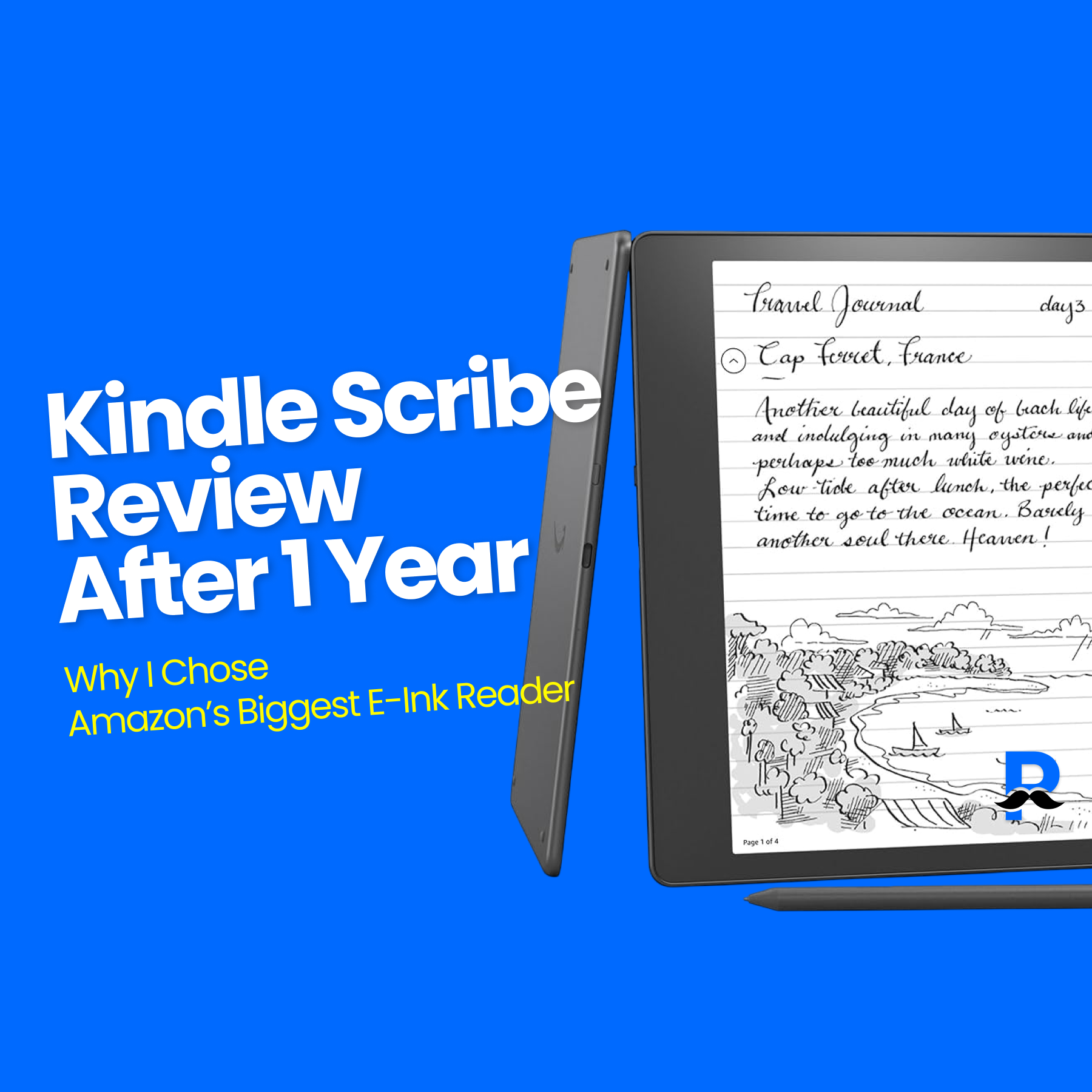
As part of that decision, I bought an Amazon Kindle, specifically the Kindle Scribe, Amazon’s largest and one of the most premium e-ink readers in the Kindle lineup.
Without overthinking it, I went straight for the top-tier model with 64GB storage.
I’m the type of person who believes “bigger is better” when it comes to devices, so this choice felt natural.
Now that I’ve been using the Kindle Scribe for about one year, this post is a practical, no-nonsense review based on real daily usage.
Table of Contents
- Who This Post Is For
- Why I Bought the Kindle Scribe
- Why Kindle & Why the Kindle Scribe?
- Kindle Scribe Hardware Review
- Kindle Scribe Software Experience
- Reading Experience on Kindle Scribe
- Notebook & Writing Experience
- What I Loved About the Kindle Scribe
- What Made Me Go “Wait… What?”
- Final Verdict: 9 / 10
- Who I Recommend the Kindle Scribe For
- Who I Don’t Recommend It For
- Closing Thoughts
Who This Post Is For
This review will be especially helpful if you’re:
- Considering an e-book reader (not just Kindle) and wondering whether it’s actually worth buying one.
- Interested in Amazon Kindle devices, especially how they compare to tablets like the iPad.
- Reading English or foreign-language books frequently, whether for career growth, study, or personal development.
Why I Bought the Kindle Scribe
(Even Though I Already Own an iPhone and iPad)
This was the biggest question both from myself and from people around me.
“You already have an iPhone and an iPad. Why would you buy another device just to read books?”
I had the same concern at first. But after using all three devices for reading, the differences became very clear.
1. Reading on an iPhone: Convenient, but Physically Uncomfortable
I used to read books mostly on my iPhone during my commute.
Over time, I ran into a few serious problems:
- Eye strain was intense
Staring at a bright LCD screen for long periods made my eyes hurt quickly. Sometimes I even felt physical discomfort, especially during long reading sessions on the subway. - The screen is simply too small
Even though I use an iPhone Pro Max, the text wraps constantly. Frequent page turns break concentration, which makes deep reading difficult.
In short, the iPhone is great for short content, but not for long-form reading.
2. Reading on an iPad: Impractical
I also own a 12.9-inch iPad Pro, which seems like it should be perfect for reading.
In reality, it comes with a different set of issues:
- Too heavy and fragile for commuting
Holding it on a crowded subway feels risky. I was always worried about dropping or damaging it. - Highlighting and dictionary usage are stressful in motion
I often read career-related books and rely heavily on highlightsword lookupsnote-taking Doing this on a moving train with a large tablet significantly increases the chance of accidental taps or mistakes.
As a result, the iPad ended up being something I owned, but rarely used for serious reading especially outside my home.
3. Why an E-Ink Reader Made Sense
This is where the Kindle Scribe came in.
What I wanted was simple:
- A device dedicated only to reading
- Easy on the eyes
- Large enough to feel like a real book
- Portable enough to use daily
An e-ink reader solves problems that phones and tablets simply can’t because it’s designed to do less, but do it better.
Why Kindle & Why the Kindle Scribe?
Once I decided to buy an e-book reader, the next question was:
“Why Kindle, and why the most expensive one?”
I’ll break this into two parts:
- Why I chose Amazon Kindle as a platform
- Why I chose Kindle Scribe over other Kindle models
1. Why I Chose Amazon Kindle as a Platform
Amazon originally started as an online bookstore, and that legacy is still reflected in how deeply optimized the Kindle ecosystem is for reading.
- Unmatched e-book catalog
- The sheer volume and diversity of books available on Kindle is hard to beat. Especially for English and foreign-language books, Amazon’s catalog is in a different league.
- Seamless ecosystem for English learning Features like:
- built-in dictionary
- Wikipedia lookup
- instant translation make Kindle particularly strong for reading original English books.
- Audible integration With Audible
- Amazon also offers audiobooks within the same ecosystem. This aligns perfectly with why I read books in the first place: career growth + English exposure.
For my use case, Kindle wasn’t just an e-book store—it was the most complete reading platform.
2. Kindle Lineup Overview: Paperwhite vs Oasis vs Scribe
At the time of purchase, the main Kindle models were:
- Kindle Paperwhite – 6.8 inches
- Kindle Oasis – 7 inches
- Kindle Scribe – 10.2 inches
In terms of price (roughly converted):
- Paperwhite: $80–$100
- Oasis / Scribe: $300–$500
3. Why Screen Size Was the Deciding Factor
For me, screen size was non-negotiable.
- 6.8 inches felt too small
- Paperwhite is popular, but I knew I’d feel limited coming from tablets.
- 7 inches felt awkwardly in-between
- Oasis didn’t feel significantly larger than Paperwhite, despite the price jump.
- 10.2 inches felt “book-like”
- The Kindle Scribe’s screen size finally crossed the threshold where reading felt natural and immersive—closer to a real paperback.
Since Oasis and Scribe were priced similarly, choosing the larger screen was an easy decision.
4. What About Waterproofing?
One important difference:
- Paperwhite and Oasis are waterproof, but Kindle Scribe is not
For some users, this is a deal-breaker.
In the U.S., many people read:
- at the beach
- by the pool
- in the bathtub
But for me, this wasn’t a meaningful concern.
Kindle Scribe Hardware Review
Overall Look and Feel


The Kindle Scribe has a clean, minimal design—very much in line with Amazon’s Kindle philosophy.
- Front: The front is not glossy glass, but a matte surface, which significantly reduces glare and reflections.
- Back: The back panel is made of a metallic material, similar to stainless steel. It feels solid and premium in hand.
One interesting design detail is that the left and right bezels are asymmetrical.
When you hold the device with one hand, the wider bezel gives your fingers a natural grip area, and the screen automatically rotates depending on how you hold it.
Small detail, but very thoughtfully designed.
Lock Screen Customization
The lock screen can only display:
- the cover of the book you’re currently reading, or
- a default Kindle background
There’s no custom image support, which might disappoint some users—but personally, it didn’t bother me much.
The Kindle Scribe Pen (Stylus)
When I ordered, the premium pen was included at no extra cost.
Key difference between pens:
- Basic Pen: no shortcut button
- Premium Pen: includes a side button for quick highlight actions
⚠️ One important warning: If you lose the pen, replacing it costs over $80–$100.
I once thought I had lost mine and tried using a third-party stylus (similar to Samsung Galaxy tablet pens).
Technically, it worked, but the writing experience was dramatically worse.
Conclusion: Don’t lose the pen. Seriously.
Kindle Scribe Software Experience
What You Should (and Shouldn’t) Expect


At first glance, you might think:
“Wait… this costs over $400?”
That reaction is understandable, as the screen is all black and white, with unatural screen frame changes.
E-Ink Display Reality Check
The Kindle Scribe uses an e-ink display, not LCD or LED.
What this means in practice:
- Screen transitions are not smooth
- Each user action = one screen refresh
- Animations are basically nonexistent
If you expect:
- tablet-like multitasking
- fast UI transitions
- app-level flexibility
You’ll be disappointed. and that’s the point.
A Kindle is not a multi-purpose tablet.
What the Kindle Can Do (and That’s Basically It)
The Kindle Scribe is designed for exactly three things:
- Buying books
- Reading books
- Writing notes
Anything beyond that? Pretty much impossible or cumbersome.
Home Screen Structure
After unlocking the device, you’ll see the home screen, which consists of four main sections:
- Home: Recently read books, recommendations, and access to the Kindle Store
- Library: All purchased and downloaded books
- Notebook: Handwritten notes and templates
- More: Settings and device preferences
Simple. Focused. No distractions.
Reading Experience on Kindle Scribe


Reading interactions on Kindle are gesture-based, mostly relying on long presses.
- Long-press a word or phrase → dictionary, Wikipedia, or translation
- Drag across text → highlight
- Tap the sticky-note icon → add notes to highlights
A small document icon appears on the page margin, indicating attached notes—subtle but useful.
This setup is especially powerful for reading English books or technical content.
Notebook & Writing Experience


This is where the Kindle Scribe truly surprised me.
Notebook Templates
The device includes multiple templates for:
- outlines
- structured thinking
- brainstorming
- free writing
I use notebooks heavily for:
- organizing thoughts
- structuring logic
- planning ideas
Writing Feel: Honestly Outstanding
The matte screen texture combined with the pen delivers a paper-like writing experience that’s hard to describe unless you’ve tried it.
Once people tried writing on it, their reaction was almost always the same:
they suddenly wanted one.
What I Loved About the Kindle Scribe

After one year of daily use, these are the aspects I’m genuinely satisfied with.
1. Extremely Easy on the Eyes
This is, without exaggeration, the biggest advantage.
- The e-ink display feels almost identical to reading real paper.
- Even after long reading sessions, my eyes don’t feel tired.
- Compared to an iPad, the difference is dramatic.
If eye strain has ever stopped you from reading more, this alone can justify the purchase.
2. Size and Weight Feel “Just Right”
- Kindle Scribe: 433g
- iPad Pro 12.9-inch: 641g
Despite its large screen, the Kindle Scribe is surprisingly comfortable to hold.
- Big enough to feel like a real book
- Light enough for extended reading sessions (Though, to be fair, it might feel heavy for some users)
3. Replaced My Paper Notebooks
I used to carry physical notebooks to organize my thoughts.
Now:
- The Kindle Scribe is my notebook.
- No extra paper, no extra bags.
- Everything stays in one place.
For someone who thinks visually and writes a lot, this was an unexpected but meaningful win.
4. Seamless Sync with PC
All highlights and notes sync automatically with the Kindle PC app.
This makes it incredibly easy to:
- review what I’ve read
- summarize key ideas
- turn reading into structured knowledge
For studying and career-related reading, this workflow is extremely efficient.
5. Excellent Battery Life
Because it uses e-ink:
- I read 10–50 pages a day
- I charge the device less than once a week
What Made Me Go “Wait… What?”
No product is perfect. These are the parts that made me pause.
1. Some Books Simply Don’t Work

If a book uses a non-standard layout (extra-wide pages, unusual formatting):
- It may download on the Kindle app (iPad/iPhone)
- But fail to download on the Kindle device itself
This inconsistency is, frankly, frustrating.
2. PDF Reading Is a Mixed Bag

Yes, you can read PDFs—but:
- Dense reports with small fonts are painful
- Constant zooming and panning is required
- Highlights and annotations sometimes fail to sync properly on PC
Summarizing PDFs from the Kindle took more effort than expected.
Final Verdict: 9 / 10
Why It Scores High
- It perfectly fulfills its original purpose
- The writing feature turned out to be far more useful than expected
- Reading comfort is unmatched
Why It’s Not a 10
- PDF limitations
- Occasional compatibility issues with certain books
That said, these issues don’t happen often enough to seriously impact daily use.
Who I Recommend the Kindle Scribe For
1. People Who Read English or Foreign Books Often
- The size is slightly larger than a paperback
- Reading feels natural and immersive
2. People Who Suffer from Eye Strain on Screens
- This is the most eye-friendly digital reading experience I’ve had
- A genuine quality-of-life improvement
3. People Hesitating Because of Screen Size
- For me, this is the largest size that’s still comfortable to hold with one hand
- A great balance between immersion and portability
Who I Don’t Recommend It For
1. Buying It Just to “Start Reading”
If you’re buying this to motivate yourself to read:
- There’s a high chance it’ll end up unused (Just like my iPad…)
2. People Who Want a Multi-Purpose Device
This is a reading-first, almost reading-only device.
If you expect:
- multitasking
- apps
- flexibility
You’ll be disappointed.
3. People Who Want Multiple E-Book Platforms
- Kindle locks you into Amazon’s ecosystem
- If you mainly read local or non-Amazon e-books, this isn’t a good fit
Closing Thoughts
I’m extremely satisfied with the Kindle Scribe—but only because my needs were very specific.
If your priorities are:
- reading a lot of English books
- protecting your eyes
- having a portable, distraction-free reading device
Then the Kindle Scribe is an excellent choice.